Cycle Count from Saved Draft
If you previously saved an unfinished cycle count as a draft, you can continue that session from the draft that was saved.
To use the Cycle Count module with a saved draft:
-
From the Workbench, select More (...) > Inventory > Cycle Count.
-
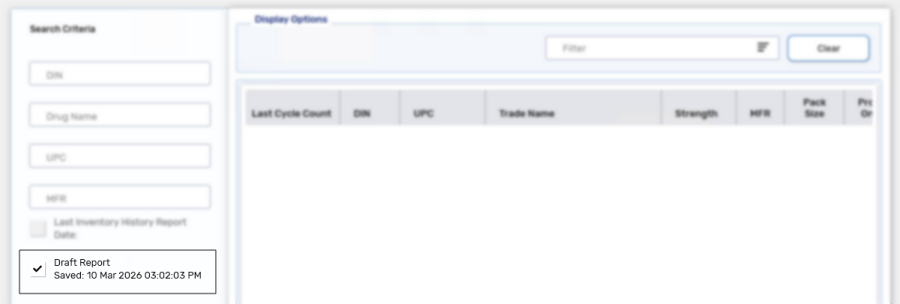
In the Search Criteria section, select the Draft Report checkbox.
-
Select Search. The Search Criteria will collapse and results that match the search criteria display.
If a product has not been Cycle Counted before, it will show a Last Cycle Count date of August 20, 2018, which corresponds to when the Cycle Count module was first introduced in Propel Rx.
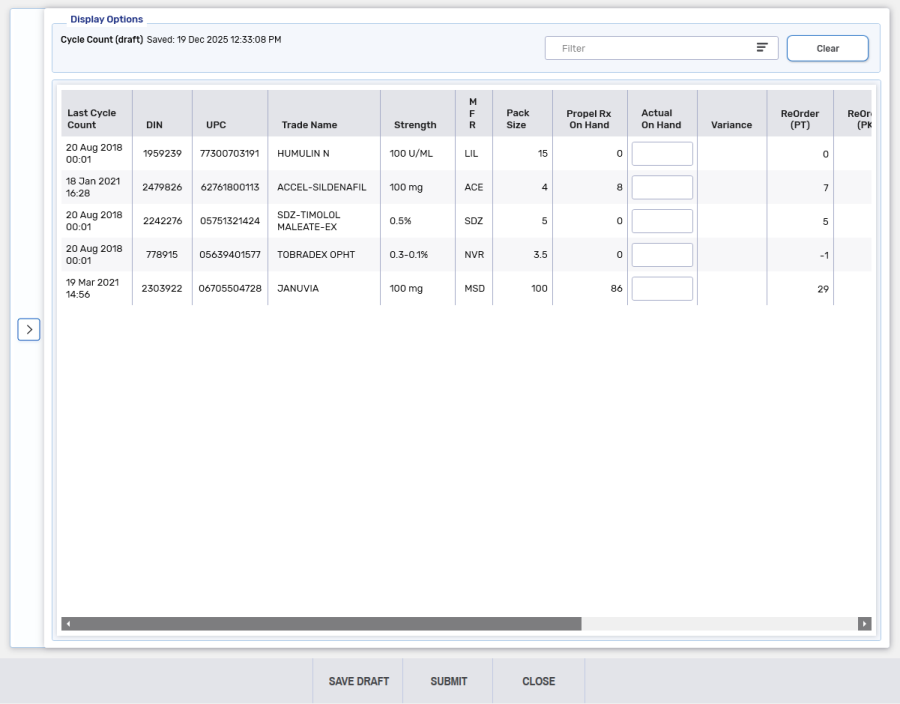
If changes are made to the Actual on Hand, Re-Order Point or Re-Order # Packs of a Drug Folder between saving a draft and re-opening a draft, a prompt displays when Submit is selected. For more information, see Additional Details of the Cycle Count Module.
-
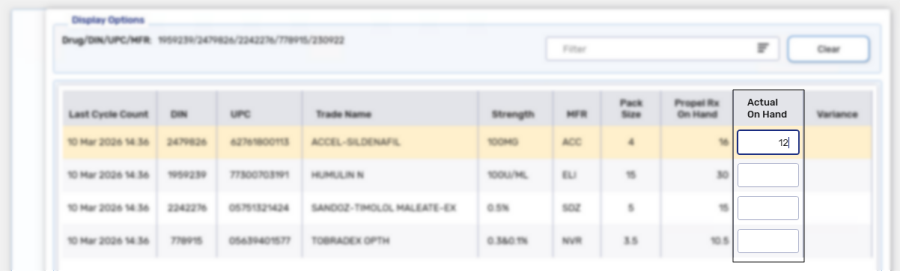
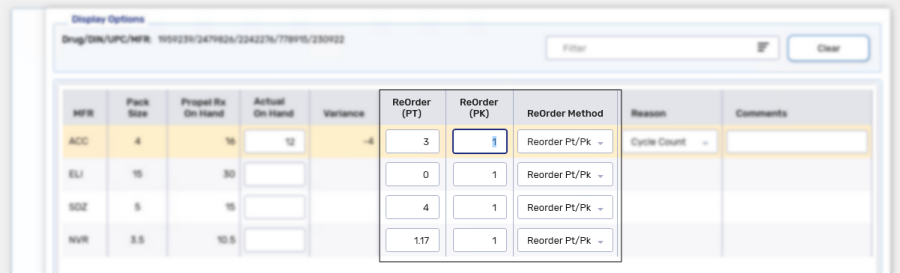
In the Actual on Hand field, enter the physical count of the drug.
-
The ReOrder Method is enabled and can be edited, if required. Options include:
-
Reorder Pt/Pk - turns the Monitor flag ON (if not already) and enables the ReOrder (PT) and ReOrder (PK) fields. Edit the ReOrder (PT) and ReOrder (PK) fields if needed.
-
Do Not Reorder - ReOrder (PT) and ReOrder (PK) fields are disabled.
 ReOrder Method is disabled
If the product is part of an Order Group but is not the Default pack size for the group, the ReOrder Method field will be disabled. From the Cycle Count module, you can only update the reorder method for the Default pack size.
-
-
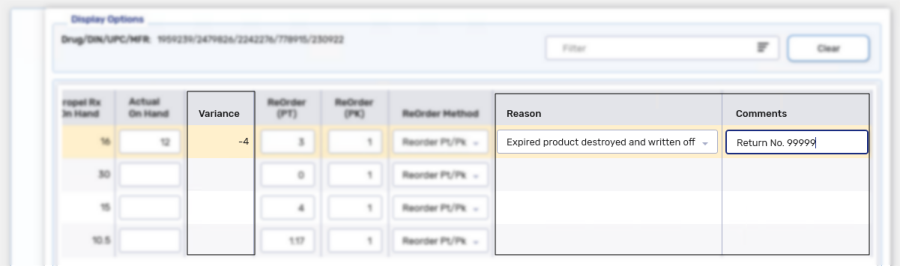
If the Variance is negative, the following information must be entered:
-
Reason - select the appropriate reason from the dropdown. By default, this is set to "Cycle Count." If the reason is unknown, you may select "Investigated. Cause of Variance Unknown."
-
Comments - add information pertaining to specific reasons (e.g., prescription numbers or return reference numbers).
You can sort the Variance column by selecting the column header. This allows drugs with the highest variance to be displayed at the top for investigative purposes.
-
-
Select Submit.
If there are blank Actual on Hand values, when submitted they have a Reason of NOT COUNTED.
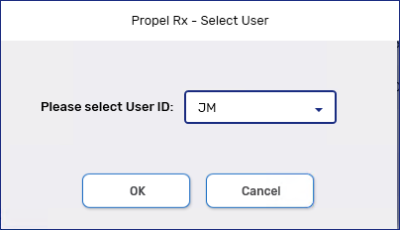
A prompt displays.
-
Select the pharmacist's initials from the dropdown.
-
Select OK. A confirmation window displays to show that the cycle count was successful.
-
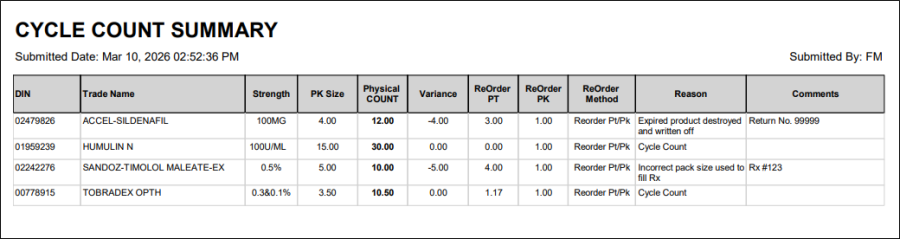
Select Print to print the Cycle Count Summary report.
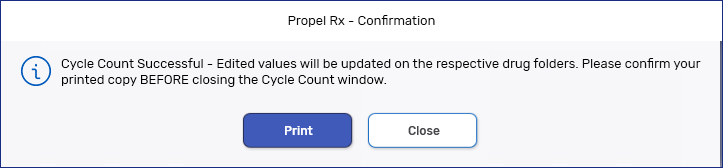
Confirm the Cycle Count Summary report successfully printed. If not, select Print again as the report cannot be retrieved once it is closed.
-
Once a cycle count is submitted:
-
The Actual on Hand, ReOrder Method, Re-Order Point and Re-Order # Packs fields are updated in the Drug Folder.
-
An entry is written to the Shipment Details window and the Drug Folder History tab.
-